All features
Browser monitoringSTARTER+

Browser monitoring: check the flows your customers use, in a real browser

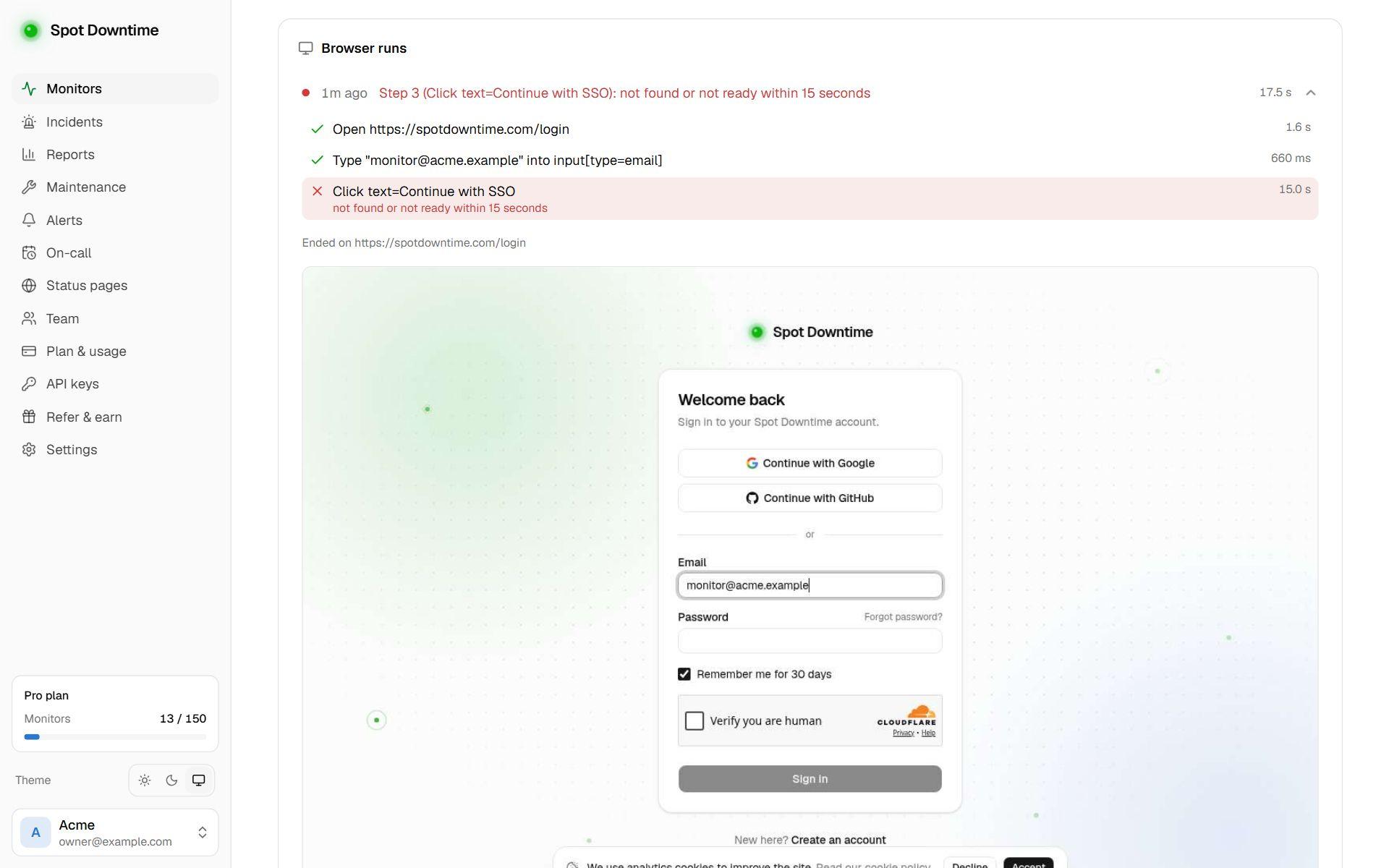
A headless Chrome opens your page, waits for its JavaScript and runs your steps: log in, add to cart, open the dashboard. If a page breaks, a button disappears or the login stops working, you're alerted with the step that failed and a screenshot of what the browser saw.

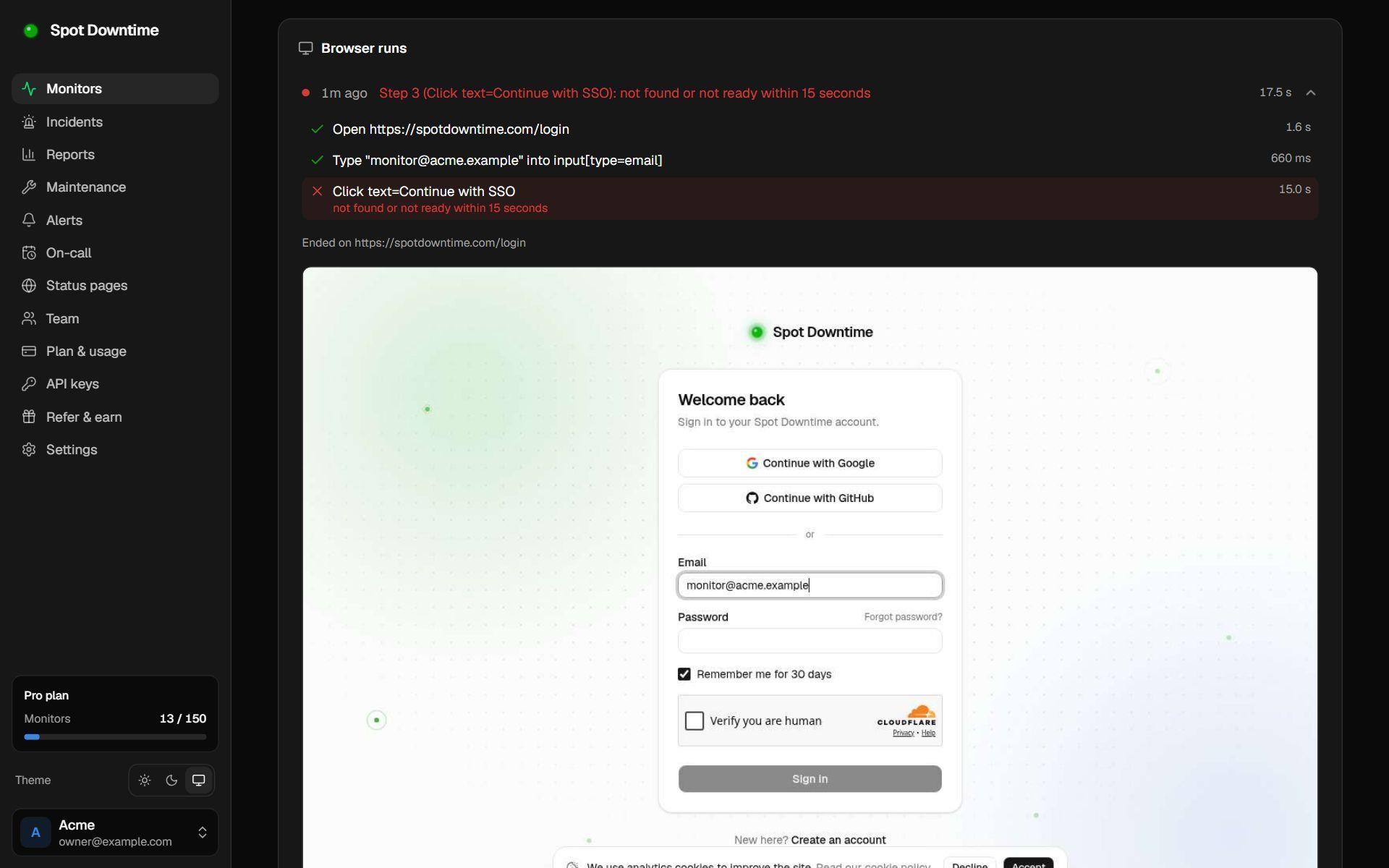
A failed browser check: each step with its time, the step that failed, and a screenshot of the page

Sees what customers see

Text your app renders with JavaScript counts, so single-page apps don't look broken to the monitor, or fine when they aren't.

Record it, don't script it

Click through a login or checkout in a live browser and each click, field and key becomes a step. Or build the steps in a form: no code to write or maintain.

Failures you can act on

Every failure says which step broke and why, with a screenshot, the page's JavaScript errors and the requests that failed.

What is browser monitoring?

Browser monitoring, often called synthetic monitoring, runs a real web browser against your site on a schedule and does what a customer would: opens the page, waits for it to finish loading, and clicks, types and checks the result. If any part of that stops working, you hear about it before your customers do.

It complements uptime checks rather than replacing them. A website check fetches a page's HTML in a fraction of a second and is right for most pages. A browser check takes a few seconds, but runs the page's JavaScript and can interact with it, so it sees problems a plain HTTP check can't.

What it catches that uptime checks miss

Most modern sites build their pages in the browser. The server answers 200 with an empty shell, and the content arrives through JavaScript. If a script fails to load, an API call breaks or a deploy ships a bug, the page is blank for visitors while every HTTP check stays green. A browser check looks for the text after the JavaScript has run, so it notices.

The same goes for flows. A login form can return 200 and still reject every password; a checkout can load and then fail on the payment step. A browser check that signs in with a test account and expects the dashboard, or adds an item to the cart and expects the total, catches exactly the failures that cost the most.

When a check fails

The alert names the step that failed and why, such as 'Step 4 (Click text=Sign in): not found or not ready within 15 seconds'. On the monitor's page you'll find every run with its step timings, a screenshot of what the browser saw, the JavaScript errors on the page and the requests that failed, so you can tell a changed button from a broken backend without reproducing it yourself.

Browser checks are re-run once before they count as down, so a single slow load doesn't page anyone. Failures open incidents and reach every alert channel, SMS and calls included, and the check can appear on your status page like any other monitor.

Safe by design

Steps are actions you choose from a list, not code, so a monitor can't run anything else in the browser. Each run gets a fresh private session, and the browser can only reach public addresses. Passwords marked Secret are stored but never displayed again, and never shared with the AI assistant.

How to set it up

  1. 1Click Add monitor and choose Browser check.
  2. 2Enter the page's URL and, optionally, text that must be visible.
  3. 3Add steps: type your test account's email, its password marked Secret, click Sign in, expect the dashboard.
  4. 4Click Check now to try it, then save. It runs every 5 or 10 minutes from then on.

The details

Browser
Headless Chromium, 1280×800, a fresh private session for every run
Steps
Up to 25: open URL, click, type, choose option, press Enter/Tab/Escape, wait for, expect text, expect visible, expect URL, wait
Selectors
CSS, or text=… to find an element by its text
Down when
The page doesn't load, answers 4xx or 5xx, a step fails, the expected text isn't visible, or the run takes over 60 seconds. Re-checked once before alerting
On failure
The failed step and why, a screenshot, JavaScript errors and failed requests
Secrets
Passwords are stored, never shown again, and never sent to the AI assistant
Plan
Starter: 3, every 10 minutes. Pro: 15, every 5 minutes. Screenshots kept 7 or 30 days

Questions

Can I run my own Playwright or Selenium scripts?
Not yet. Steps cover logins, forms and click-through flows without code, and they can't do anything else in the browser, which keeps them safe to run. Script support may come later.
Is it safe to put a password in a step?
Mark the step Secret: the password is stored, sent only to the browser that runs the check, never shown in the app again, and never sent to Ask AI. Password fields appear as dots in screenshots. Use a dedicated test account anyway.
Why is my check failing when the page works for me?
The screenshot shows what the browser saw. Common causes are a changed button or field (update the selector), a step that runs before the page is ready (add a Wait for step), or bot protection blocking automated browsers (see the allowlist guide).
Does it check from several regions?
Browser checks run from one region for now, and a failure is confirmed by running the check again before anyone is alerted.
How is it different from a website check?
A website check fetches the page's HTML in a fraction of a second and is the right check for most pages. A browser check runs the page like a visitor's browser, including its JavaScript, and can click and type, so it catches broken logins and client-side apps that a website check can't see.

Set up browser monitoring in under a minute

Available on Starter and Pro. Start free and upgrade when you need it.

Create a free account