New · For Windows 10 and 11
Downtime alerts on your desktop
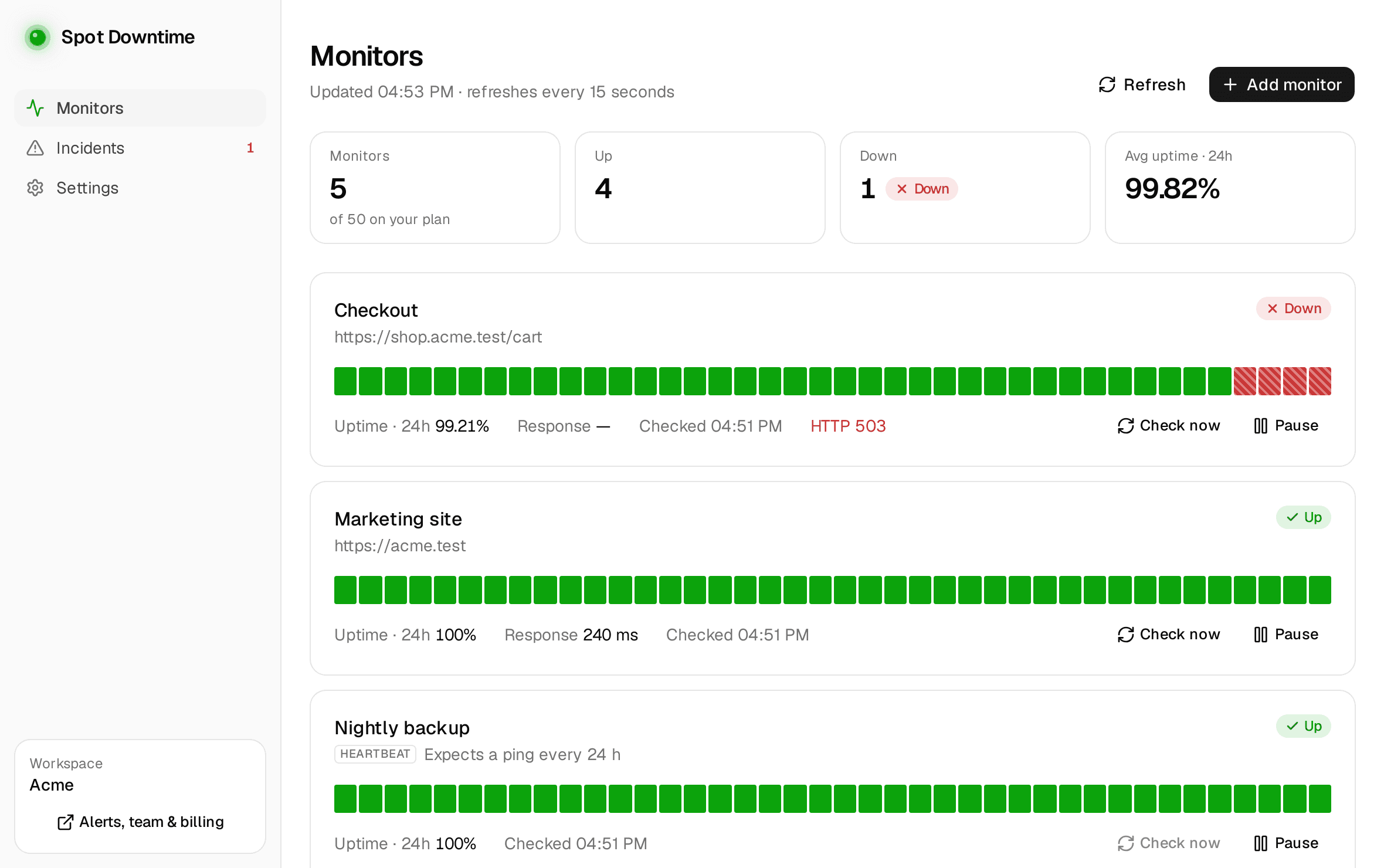
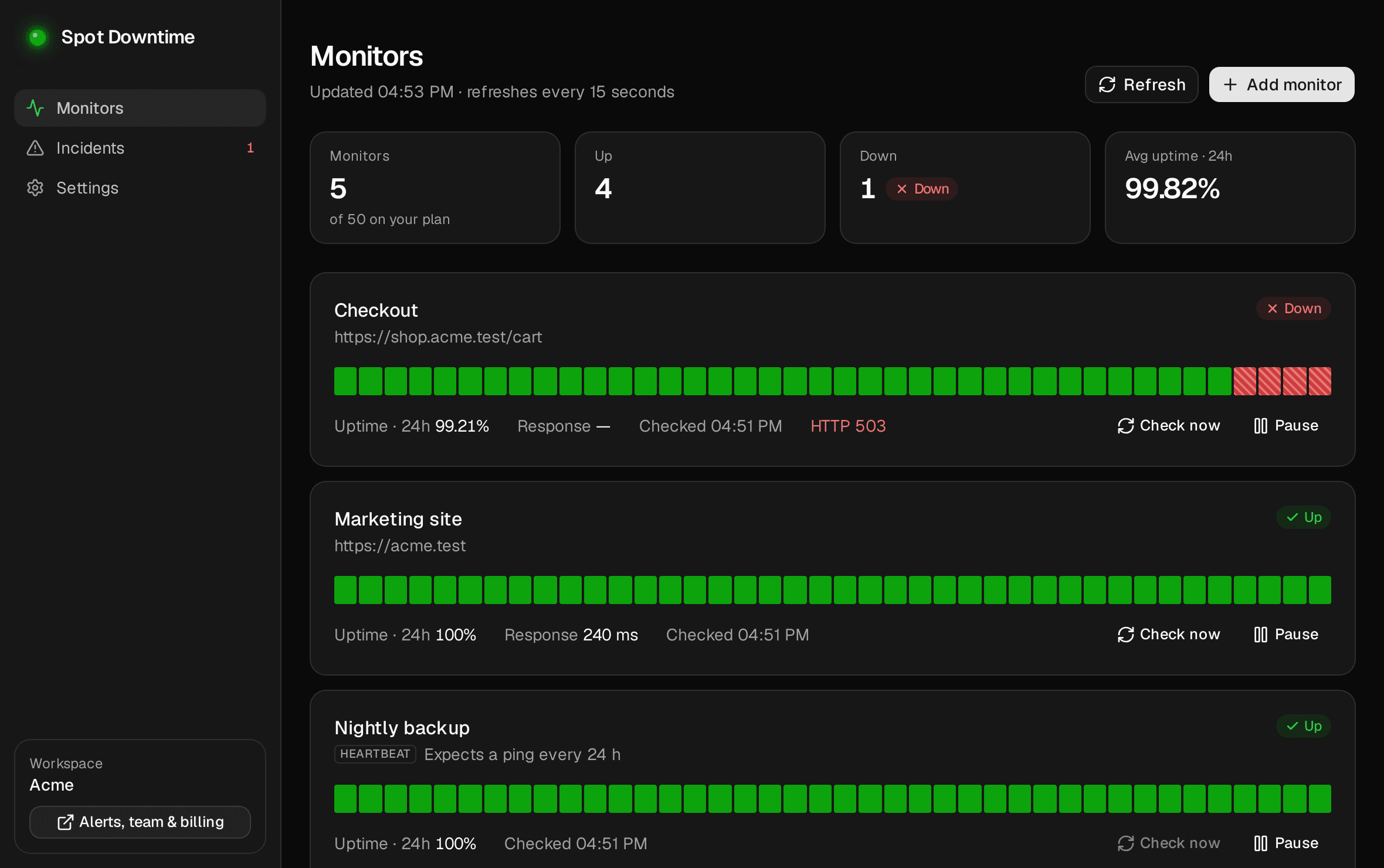
Spot Downtime for Windows tells you the moment a website or API goes down, lets you acknowledge it from the notification, and puts every monitor a click away, without opening a browser.
Free with every account. Create one if you're new.
Everything you do on the web, in a desktop app
The checks run in our cloud as always. The app is where you hear about it, and where you act.
Alerts that wait for you
A Windows notification within 15 seconds of a monitor going down. It stays on screen until you act, and another tells you when it's back up.
Acknowledge from the alert
Hit Acknowledge in the notification to stop escalation and tell your team you're on it, or Open to go straight to the monitor.
Manage monitors on the desktop
Add, edit, pause and delete every kind of monitor, from websites and APIs to heartbeats, DNS and third-party services, with the same options as the web app.
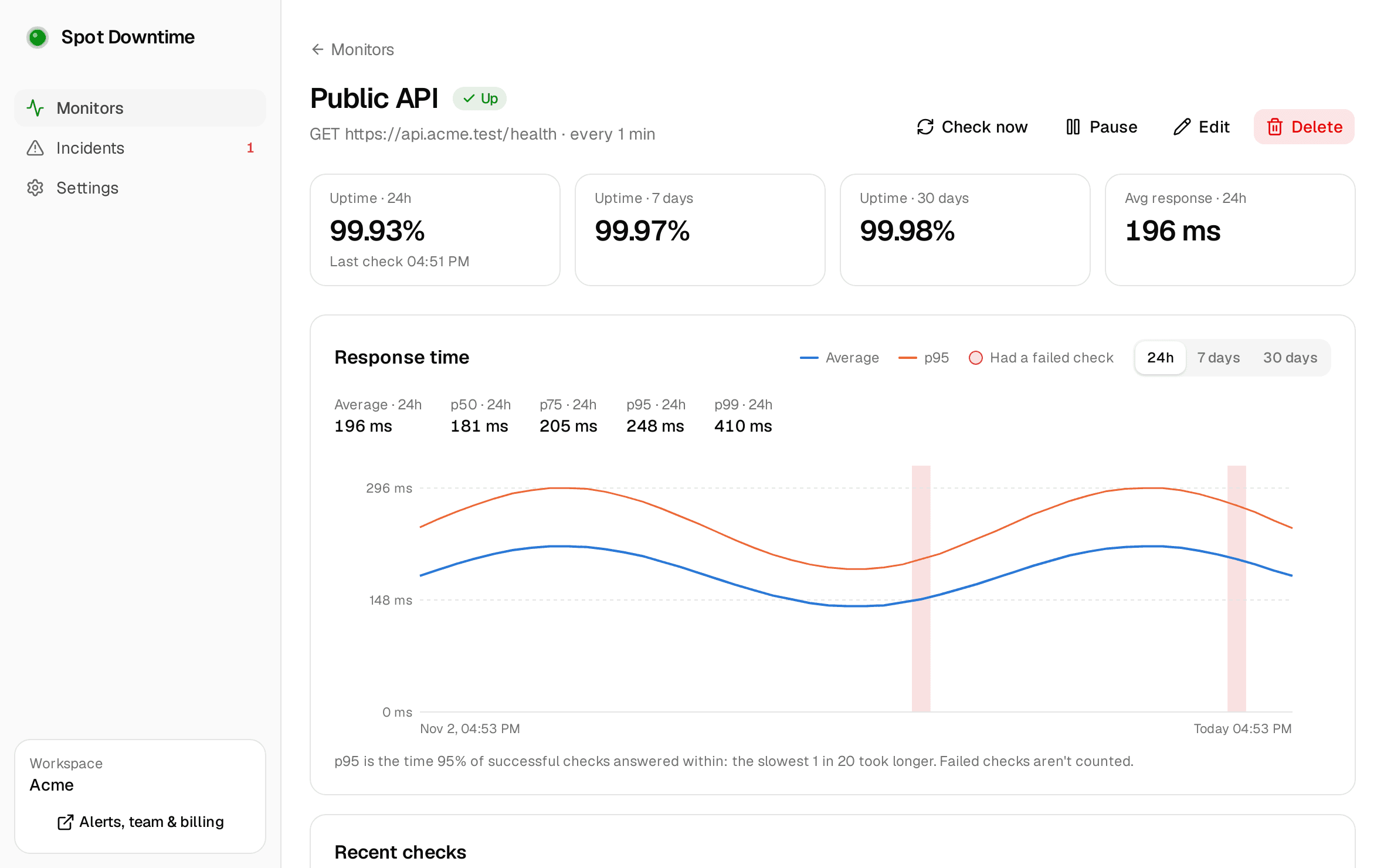
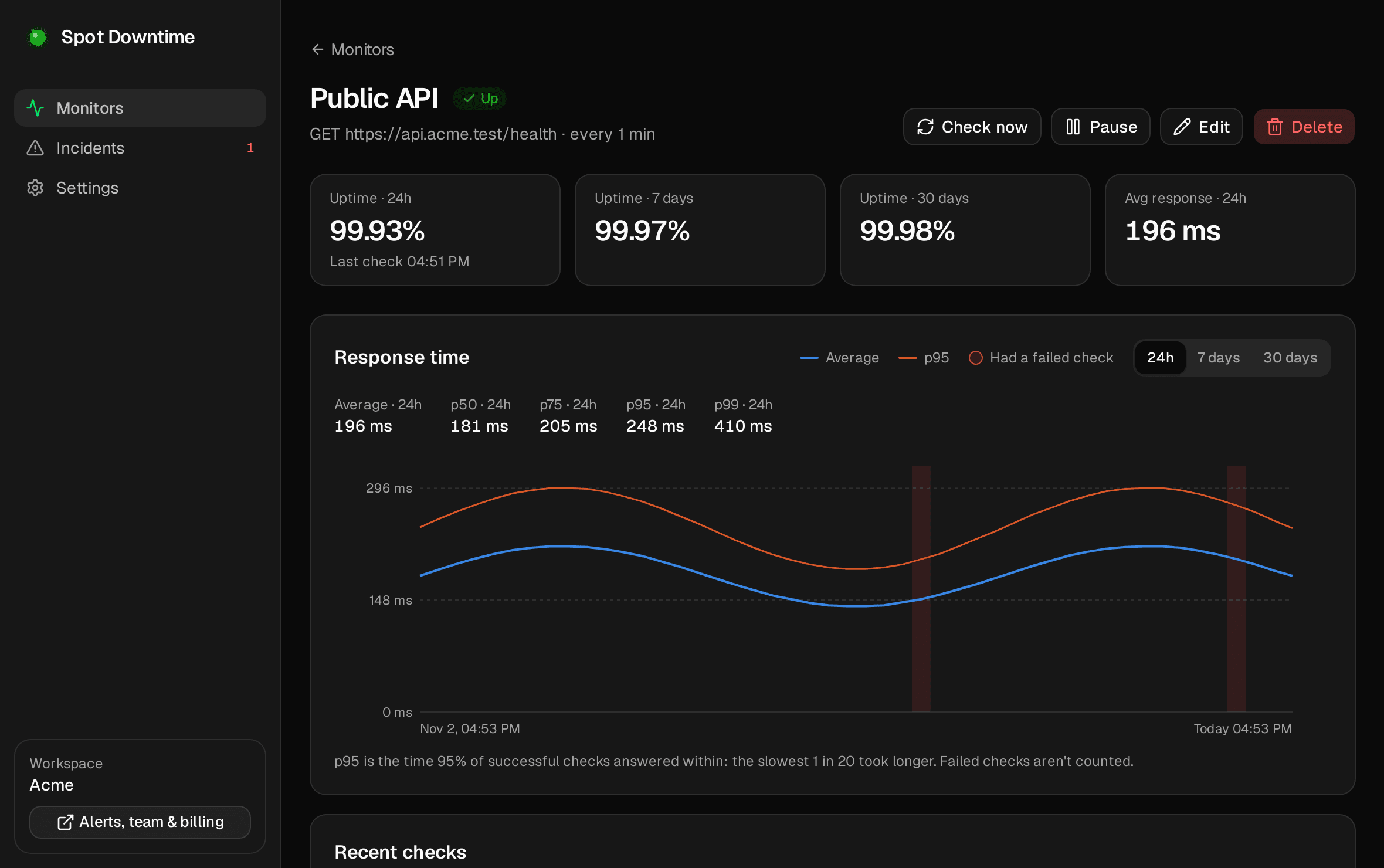
Charts, checks and incidents
Response-time charts with p95, recent checks, uptime for 24 hours to 30 days, and incident timelines you can post updates to.
Always running, out of the way
Starts with Windows and lives in the tray. Close the window and it keeps watching; it even restarts itself after a crash or an update.
Your account, signed in safely
Sign in through spotdowntime.com with your email, Google or GitHub. The app never sees your password and only reaches the workspace you choose.
A closer look
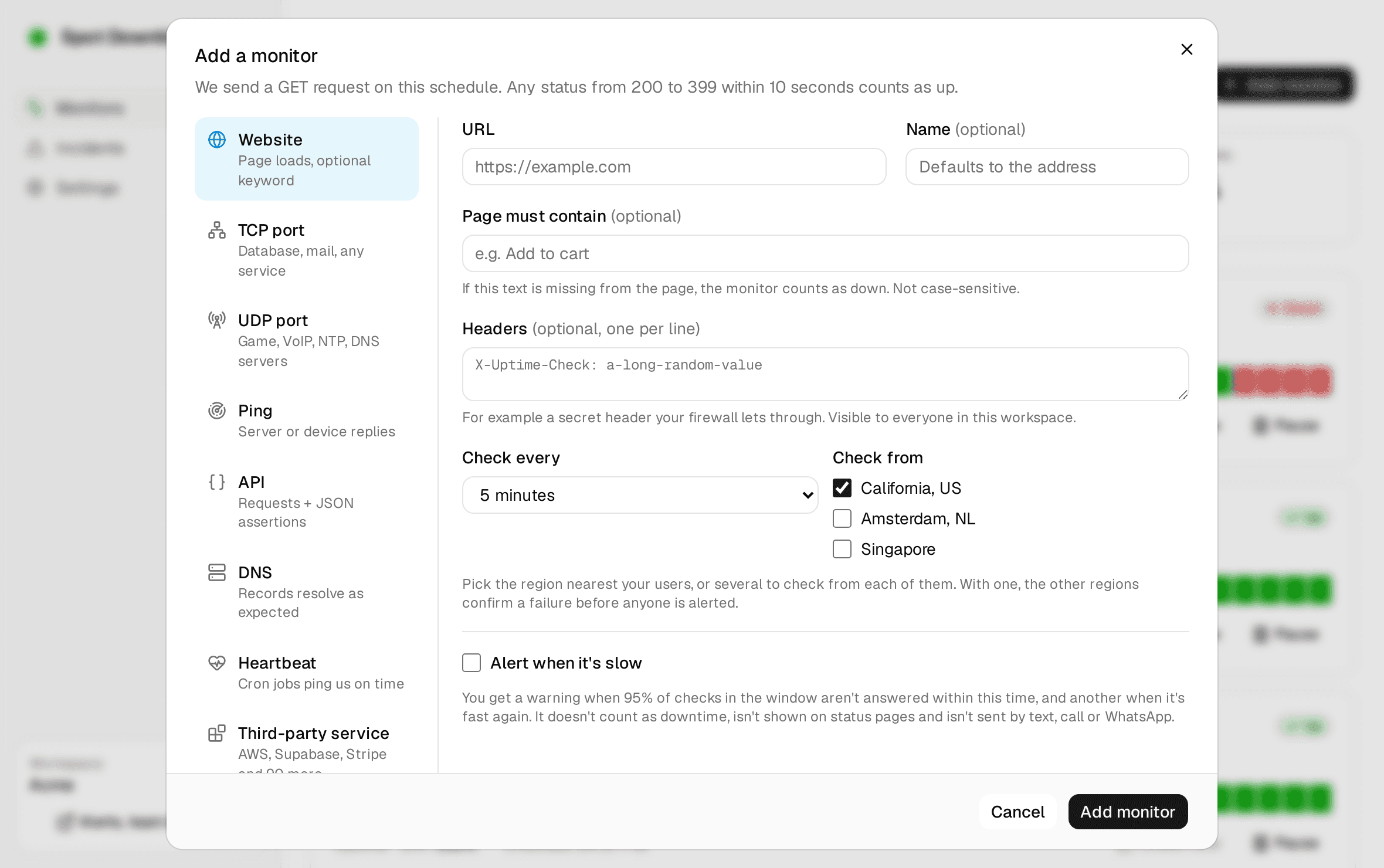
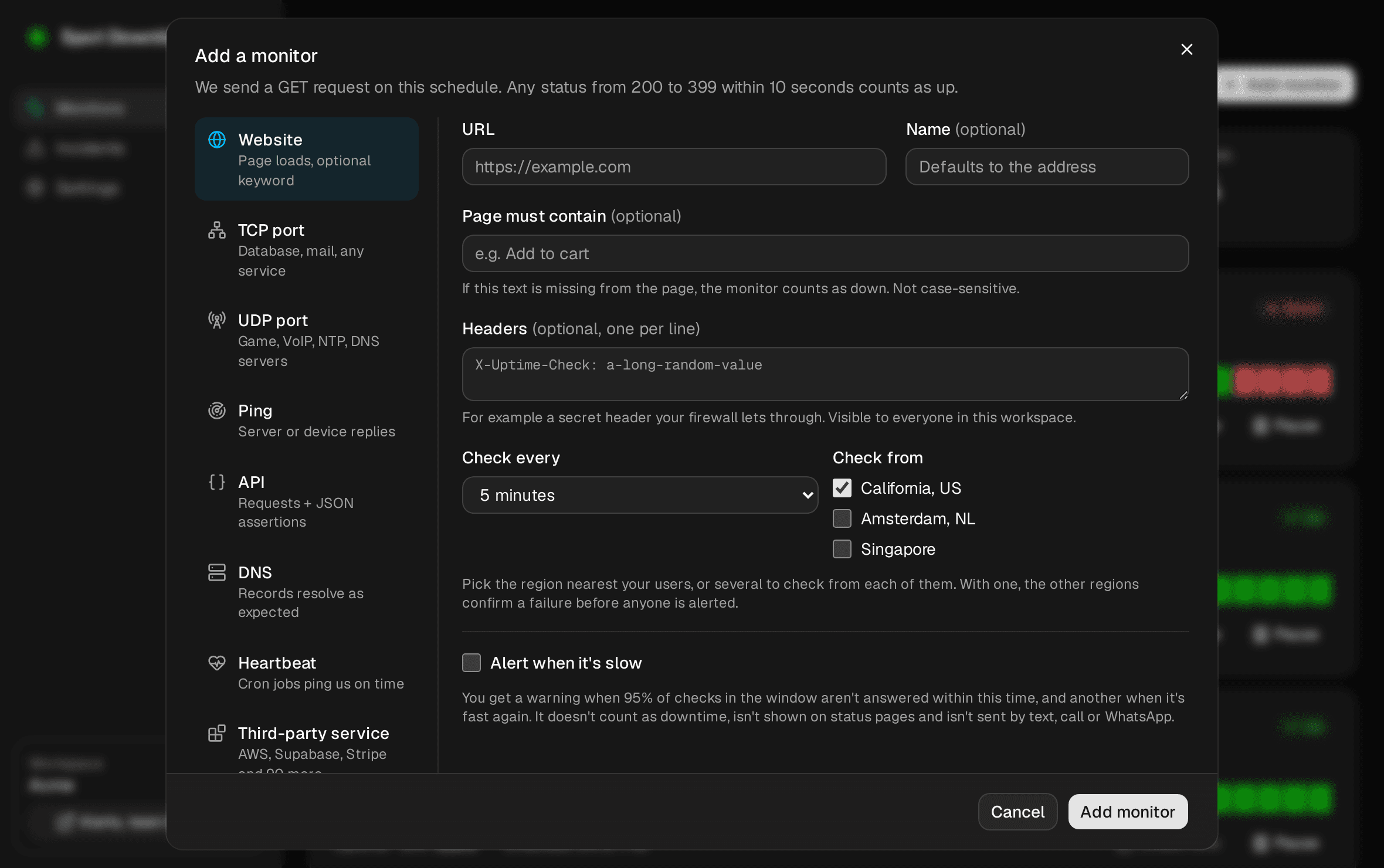
Up and running in a minute
- 1
Download and install
Run the installer. It installs for your Windows account, so you don't need administrator rights.
- 2
Sign in with your browser
Spot Downtime opens spotdowntime.com: sign in as usual and choose the workspace this PC should watch.
- 3
That's it
Your monitors appear, and the next outage shows up as a notification, even with the window closed.
Requirements
- Windows
- 10 or 11, 64-bit
- Download
- 6 MB · version 0.4.0
- Account
- Any plan, including Free
- Also needs
- Microsoft WebView2, built into Windows 11; the installer adds it if missing
Questions
- Is the Windows app free?
- Yes, on every plan including Free. It uses your existing account and workspaces.
- Do I need to keep it open?
- No. Closing the window keeps it running in the tray, and it starts with Windows, so alerts keep coming. You can turn that off in its settings.
- Does it replace email, Slack or SMS alerts?
- No, it comes on top. Your alert channels keep working from the cloud whether or not your PC is on; the app adds a notification on your desktop.
- What do I still use the website for?
- Alert channels, status pages, your team and billing. The app opens the right page for you. Monitors and incidents are all in the app.
- Windows says it protected my PC. Is the app safe?
- The app is new and isn't code-signed yet, so Windows SmartScreen may warn about it the first time. Click More info, then Run anyway. Only download it from spotdowntime.com.
- How do I uninstall it?
- In Windows Settings › Apps › Installed apps, find Spot Downtime and choose Uninstall. It removes the app and everything it saved on your PC.
- Is there a Mac or Linux version?
- Not yet. On a Mac, use the web app or the iPhone and Android app for alerts.
Hear about downtime before your customers do
Install the app, sign in, and the next outage reaches your desktop first.
On your phone? Get the iPhone and Android app.