Spot Downtime is now in Claude's connectors directory
Ask Claude what's down, why an API failed or to schedule maintenance during a deploy. Connect by signing in, choose read-only or read & write, and disconnect any time. On every plan.
· 3 min read · By the Spot Downtime team
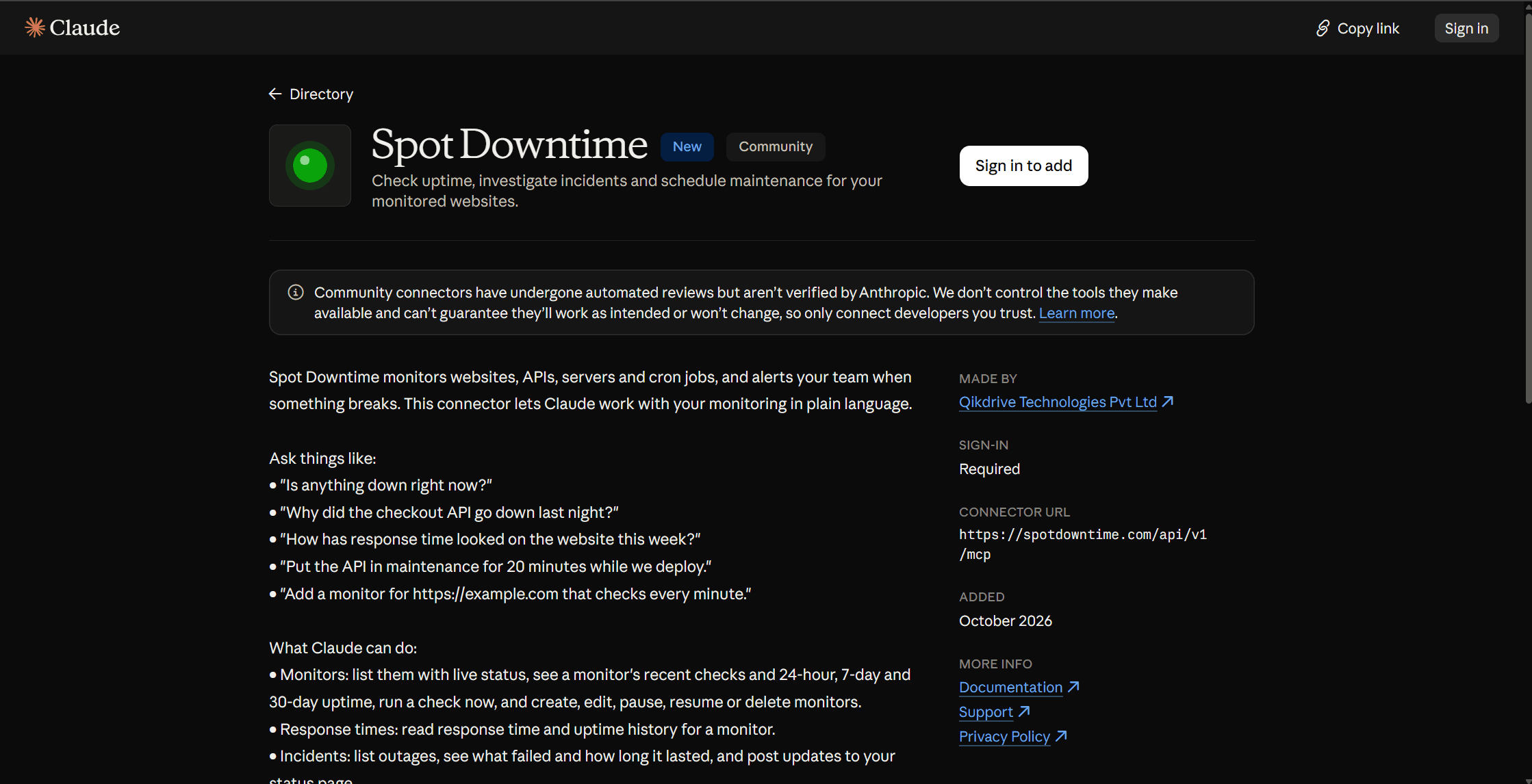
Spot Downtime is now in Claude's connectors directory. Connect it once, and you can ask Claude about your monitoring in plain language: what's down, why the API failed last night, or to put the website in maintenance while you deploy. Claude reads your monitors and incidents, and with your permission, makes changes for you.
What you can ask
- “Is anything down right now?” Claude lists failing monitors and the error each one returns.
- “Why did the checkout API go down last night?” It reads the incident: what failed, how many regions saw it, and how long it lasted.
- “How has the website's response time looked this week?” It pulls the response-time and uptime history.
- “Put the API in maintenance for 20 minutes while we deploy.” It schedules the window, so the restart isn't counted as downtime or alerted.
- “Monitor https://example.com every minute and check the page says Add to cart.” It creates the monitor with a keyword check.
- “Post an update: we've found the cause and a fix is rolling out.” It adds the update to the open incident on your status page.
Connect in under a minute
In Claude, open Settings → Connectors, find Spot Downtime in the directory and click Connect. You can also open the Spot Downtime listing directly. Sign in to Spot Downtime when asked, choose the workspace, and pick the access Claude gets. That's it: there's no API key to create or paste.
It works in Claude on the web, the desktop and mobile apps, and in Claude Code. On Claude Team and Enterprise, an owner enables the connector for the organization first.
You decide what Claude can do
- Read only or read & write. Read-only access lets Claude look but never change anything. Read & write adds creating, pausing and editing monitors, posting incident updates and scheduling maintenance.
- Claude asks first. By default, before using a tool that changes something, Claude shows you what it's about to do and waits for your approval. You can change this per tool in Claude's connector settings.
- One workspace, nothing sensitive. A connection reaches only the workspace you chose, and never billing, team or account settings.
- Disconnect any time. Every connection is listed under Settings → API keys → Connected apps. Disconnecting stops Claude's access at once. Workspace owners and admins can see and remove every connection in the workspace.
On every plan
The connector works on Free, Starter, Pro and Enterprise, with up to 120 requests a minute per connection. If you're new to Spot Downtime, create a free account, add a monitor or two, then connect Claude.
Using Cursor, VS Code or another assistant?
Keep reading
- Alerts · Product updatesNew: get a text message when your site goes downSpot Downtime now texts you when a monitor goes down, recovers or has an expiring SSL certificate, and can call you too. Credits included on every plan, Free too.October 9, 2026 · 2 min read
- Tools · DNS · Email11 new free tools for checking websites, DNS and emailCheck a site from 3 locations, see if a DNS change has propagated, find out if your mail server is blacklisted, test TLS and IPv6, find broken links and more. Free, no sign-up.October 12, 2026 · 4 min read